The Newsroom → Product → Nov 11th, 2026
A Closer Look at Your Cache
A Closer Look at Your Cache
Ever want to dig deeper into your cache to see exactly what's in there? Well, now you can.
 Jack McDade
•
3 min read

Let's imagine you've changed your image resize presets a bunch of times and you're not sure exactly how many images you've actually generated at this point. Maybe a lot. 😬 Or maybe you want to take a peek at how many pages Statamic has statically cached and selectively invalidate or warm some of them. These two scenarios (and a bunch more) now have a great solution.
We've given Statamic's Cache Manager a browser for digging around inside your caches. You can browse individual static pages and image variations, see when they were generated, and clear exactly what you need.
Browse your cached pages
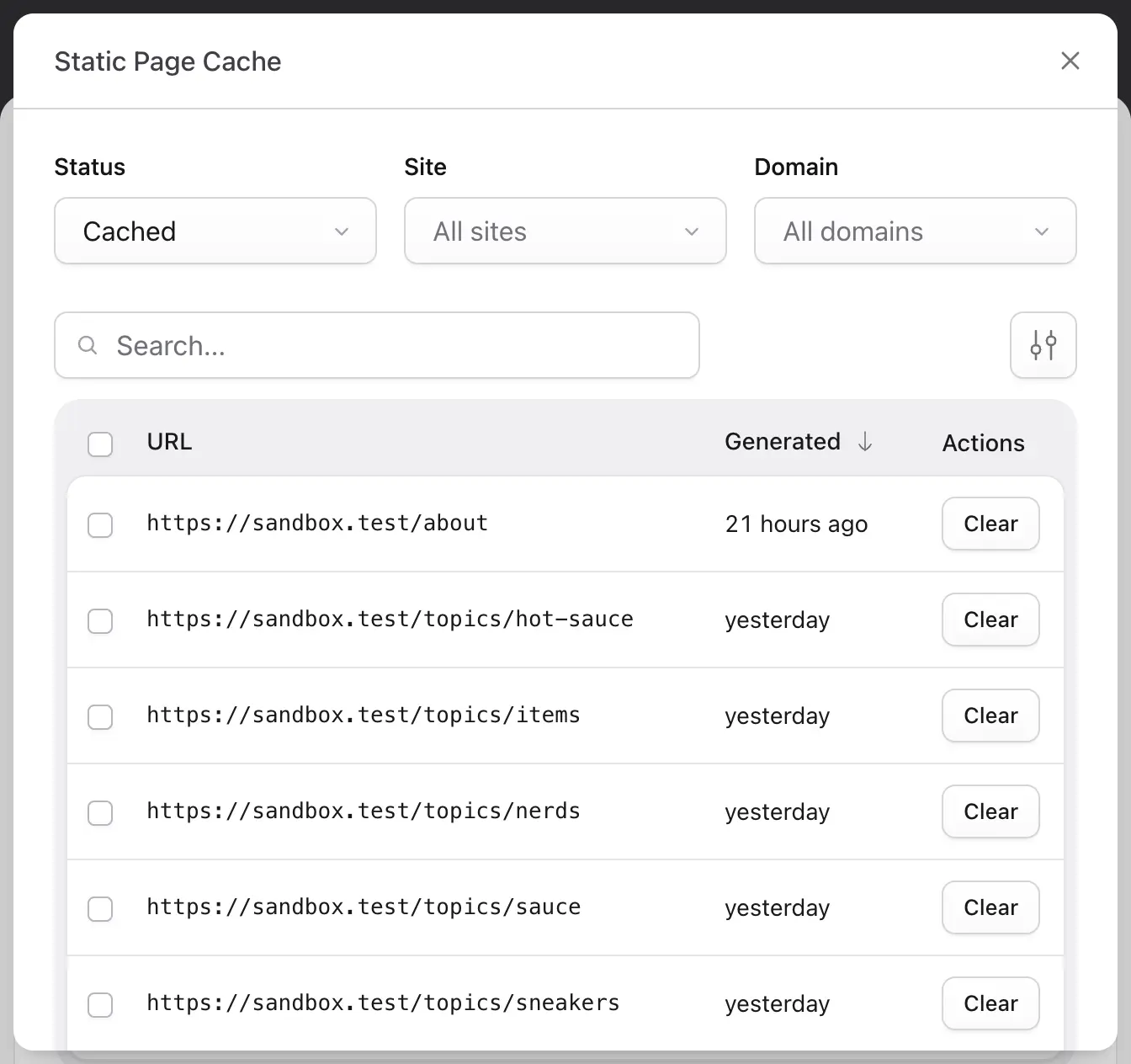
Head to Utilities → Cache Manager and choose Browse pages under Static Page Cache.
You'll find a searchable listing of cached URLs, with filters for site, domain, and cache status. See when a page was generated, open it in a new tab, or clear its cached copy. Select a handful of pages and clear them together.
And it's all multisite friendly.
Clear a whole section
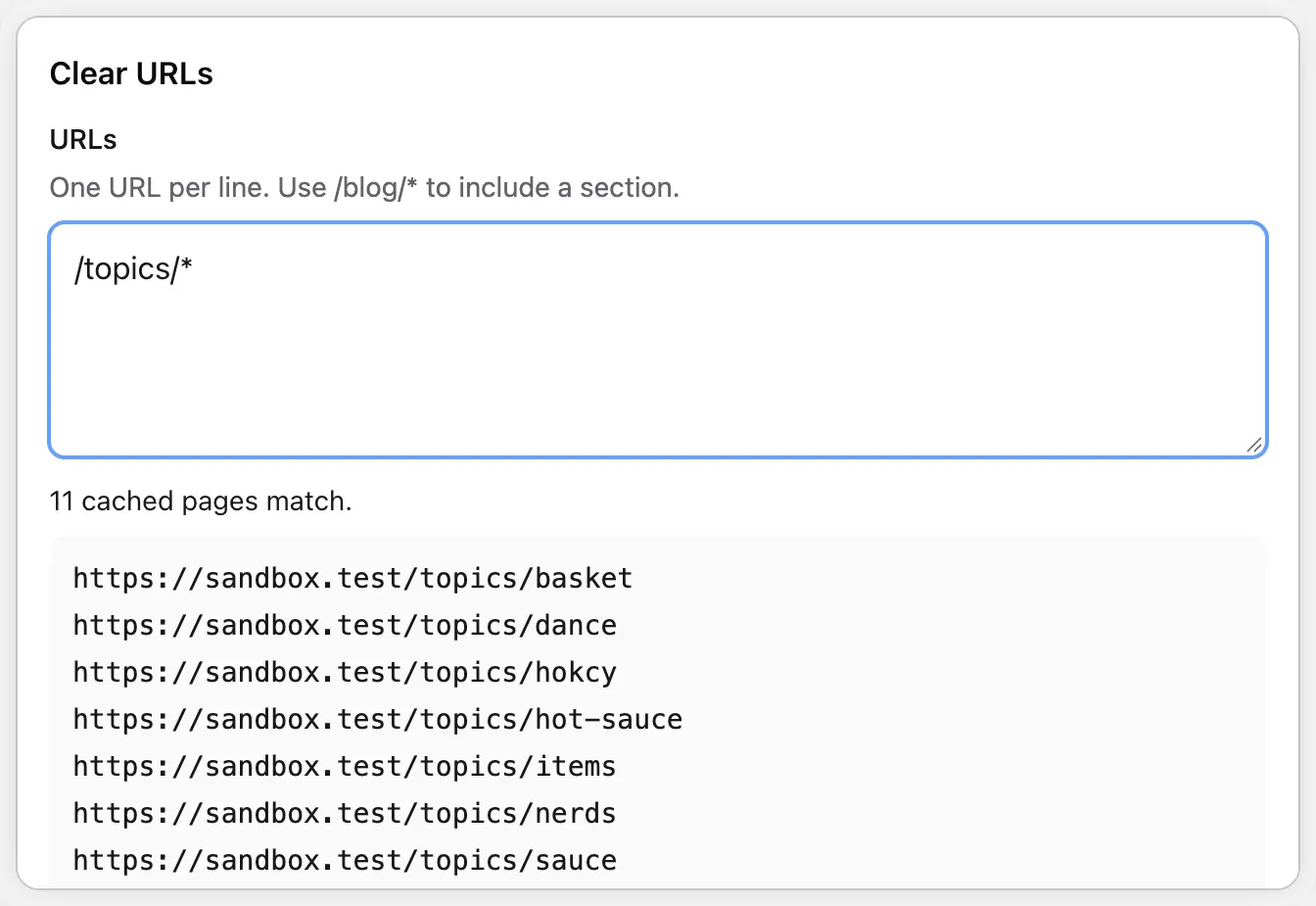
Sometimes you already know which URLs need clearing. Choose Clear URLs… and enter one per line, or use a trailing wildcard to include a section:
/about/blog/*As you type, Statamic shows how many cached pages match and previews the matching URLs. On a multisite installation, you can scope this to a particular site, too.
If you've changed your blog template, /blog/* gives you a quick way to clear the cached posts that use it without having to blow away your 9,400 news articles at the same time.
Find the pages that still need caching
Switch the explorer to Uncached to see pages eligible for static cache warming that haven't been cached yet. You can cache one page or select several and cache them together.
The overview also shows how many warmable URLs are already cached, so you can check coverage at a glance. Want to warm the static cache across your site? There's a Warm button for that, right alongside the clearing controls.
This all works with your configured static caching strategy. If you haven't enabled static caching yet, the docs will get you started.
Follow an image through its variations
A single photo can become a thumbnail, a card image, a hero, and several sizes of each. Those variations add up, and now you can browse and clear them if you'd like.
Choose Browse images to explore your image cache by asset container, then drill into an asset to see its cached variations. Each variation includes a preview, dimensions, format, file size, and generation date.
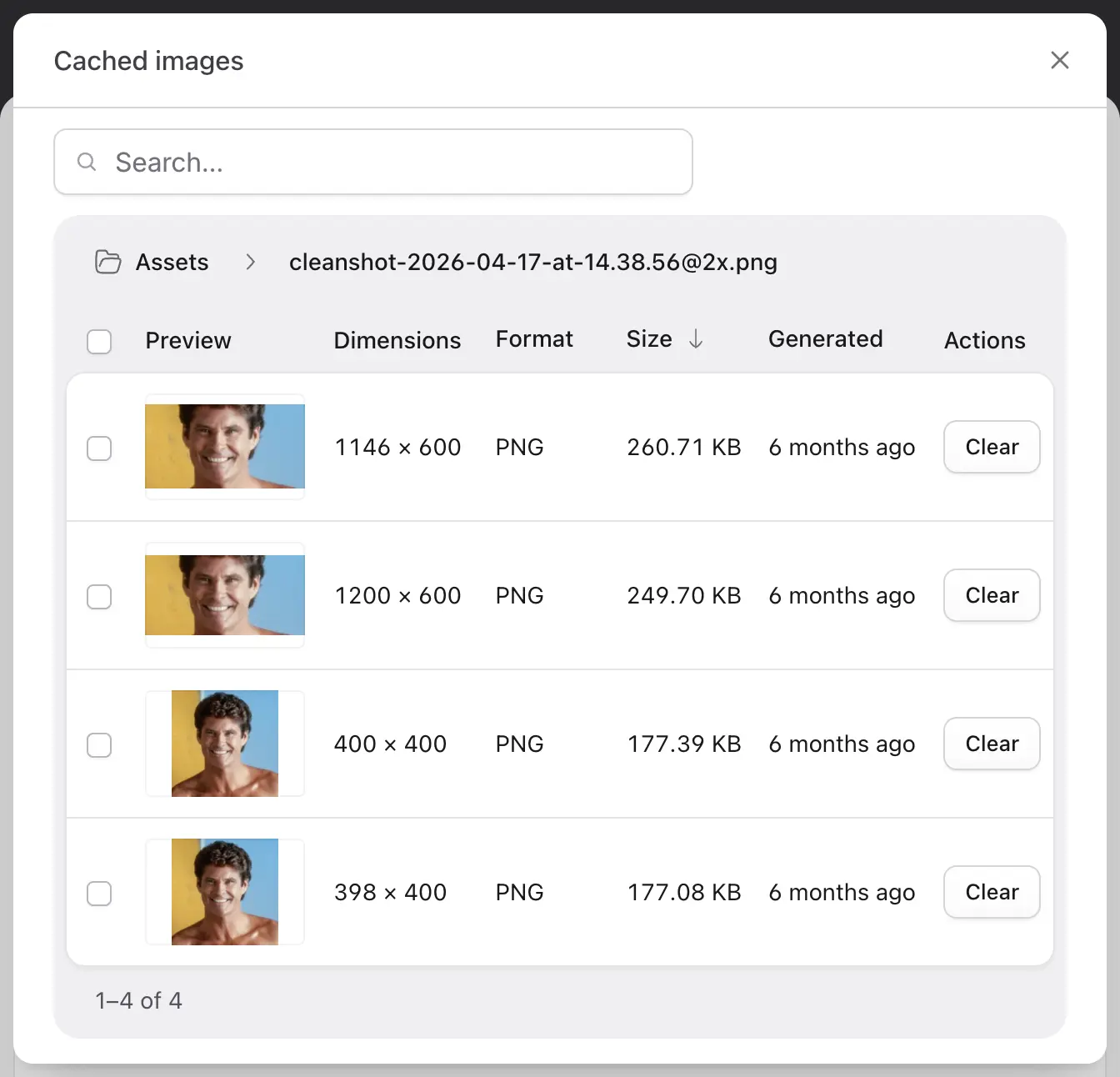
You can clear a single variation, select several, clear every variation for an asset, or clear a whole container's image cache. Your original assets stay put, of course — we're only working with cached copies here.
All of this (and more) is now available in Statamic 6.41.0.
Welp, back to it then!