


#Beacon documentation
Everything in this file also lives under docs/ in the repository, one
guide per file. This is the same material in one place.
Beacon is a site-wide alert banner for Statamic. Alerts are written in a collection in the control panel or fed from a remote source, scheduled, graded by severity, aimed at named audiences, accessible, and correct behind static caching. Install, the tag, config keys, commands and the things Beacon will not do are in the README.
#Contents
Start with Operating Beacon if you are the developer or the server owner. Start with the guide for your source if you are setting up where alerts come from. Each source guide follows the same shape: what you need, the settings screen, the same in the config file, how to test it, how it fails, and a checklist for the people who will publish alerts.
| Guide | For |
|---|---|
| Operating Beacon | The scheduler, audiences, preview, monitoring, static caching |
| Alerts written on this site | Alerts written in this site's control panel |
| WordPress as an alert source | Joining a WordPress.com alert site, and setting one up |
| An RSS or Atom feed | Any platform with an RSS or Atom feed |
| Weather and emergency agencies (CAP) | The National Weather Service and other CAP publishers |
| GitHub as an alert source | A file, a Gist, or labeled issues on GitHub |
| A JSON feed with no guide of its own | A JSON feed nobody has a guide for |
| The WordPress alert feed, as Beacon reads it | Reference: what the WordPress feed looks like on the wire |
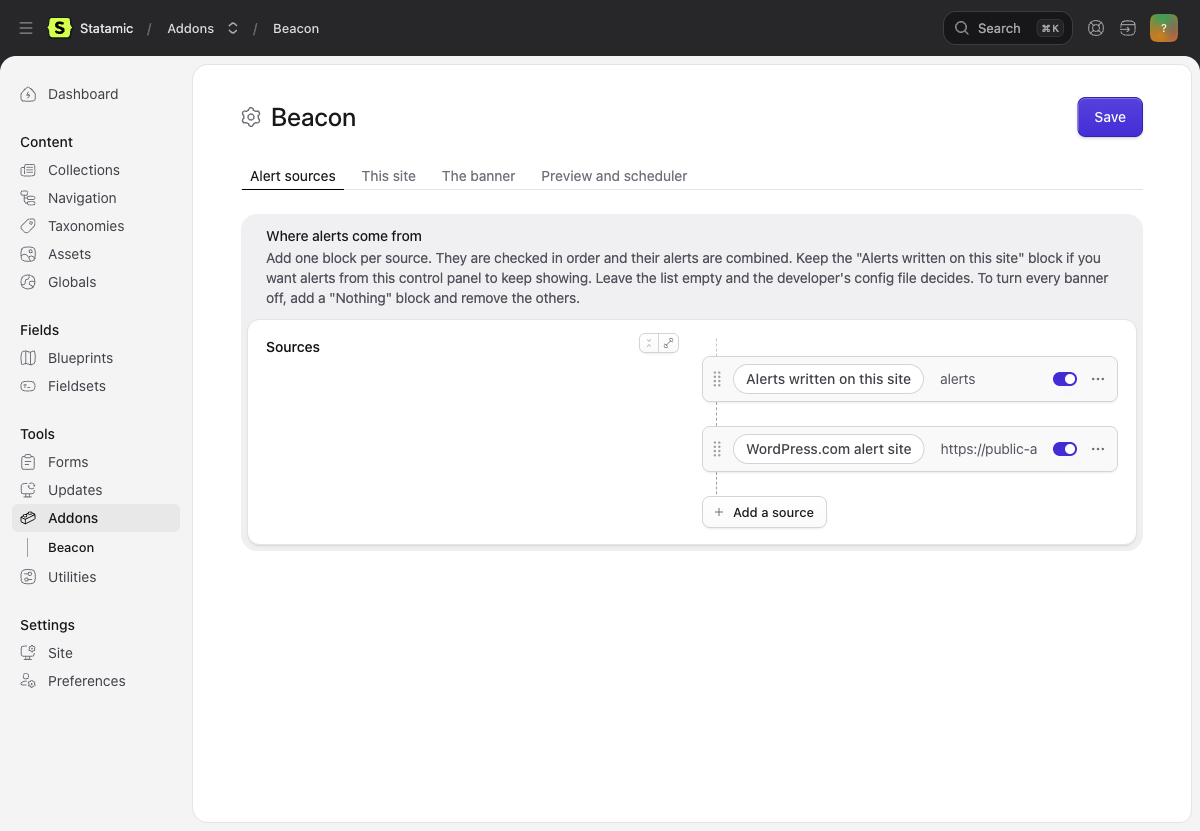
The settings screen is at Addons, Beacon, Settings in the control panel.
#Operating Beacon
For the developer or server owner. Everything here is about making sure an alert that is published actually reaches a visitor, and that you find out when it cannot.
#What you need
- Beacon installed (
composer require bpmore/statamic-beaconandphp please beacon:install). {{ beacon }}first inside<body>in the layout, before the skip link.- Shell access to the server for the cron line, if any source is remote.
#The scheduler
Remote sources (anything but the local collection) are fetched by Laravel's scheduler, never during a page view. Without it a remote alert never arrives. The crontab line:
* * * * * cd /path/to/site && php artisan schedule:run >> /dev/null 2>&1Beacon registers beacon:tick to run every minute. Each tick fetches
the sources whose poll interval has passed, notices alerts whose start
or end time just went by, and clears the page cache when either changed
what a visitor sees.
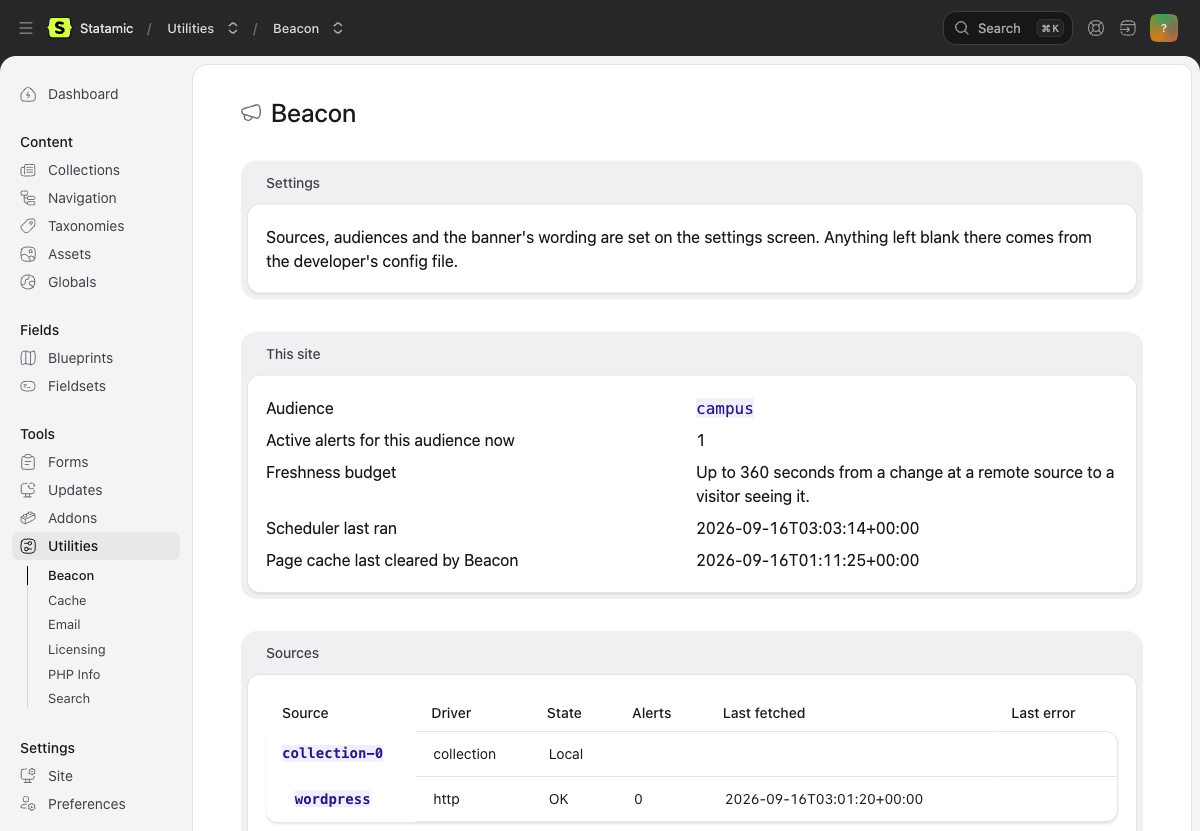
How you know it is running: the Beacon page under Tools shows "Scheduler last ran" with a time under a minute old, and no warning box at the top.
#The freshness budget
The longest a change at a remote source can take to reach a visitor is the source's poll interval plus one minute (the scheduler's granularity). With the default 300 seconds that is 6 minutes. The Beacon page shows the number for your settings. Halve the poll interval and you halve the wait; the cost is twice the requests to the source, which matters for GitHub's issues API and not much else.
Local alerts are immediate on save, and their scheduled starts and ends are honoured within a minute.
#Audiences
An audience is a name shared by a group of sites. On the settings
screen, This site tab, set this site's audience. Alerts aimed at that
name show here; alerts aimed at other names do not; alerts aimed at no
name show everywhere. Matching is exact: campus does not match
campus-north, and nothing is guessed from the hostname.
Multi-site installs: the "Audiences by site" table maps each Statamic site to its audience. A site not in the table uses the default.
#Static caching
Beacon works behind Statamic's static cache in half and full mode. It clears the whole cache (the banner is on every page) when:
- an alert entry is saved, published, unpublished or deleted
- a scheduled start or end passes
- a remote fetch returns different alerts from last time
- the settings screen is saved
It does not clear the cache when a fetch returns the same alerts, so polling every five minutes costs nothing in cache hits.
Previews bypass the cache both ways.
#Live emergency updates
Off by default. On the settings screen, Preview and scheduler tab, "Show
new emergencies without a page load". A script on every page then asks
/!/statamic-beacon/live on this site every so often (60 seconds by
default, 15 at the fastest), shows a new emergency on the page a
visitor already has open, and removes an emergency that has ended. It is only as fresh as the scheduler, because
the endpoint serves what the scheduler last stored; it never contacts a
remote source itself. Cost: one small same-origin request per open tab
per interval. Behind a static cache the endpoint is never cached.
#Monitoring
php please beacon:statusphp please beacon:status --json | jq .healthyExit 0 when every remote source has a payload within its retention
ceiling and the scheduler has run recently. Exit 1 otherwise. Exit 2 if
the command itself failed. --strict also fails when a source's last
attempt failed even though its retained payload is still good. Point a
monitor at it.
The Beacon page under Tools shows the same per source: last fetch, last error, retained alerts, backoff, and GitHub's remaining rate limit.
#When a source breaks
Nothing shows to visitors and nothing breaks the page. The last good payload stays up until its alerts' end times pass or until it is older than the source's retention ceiling (default 24 hours), after which nothing from that source shows. A source that answers "no alerts" clears its banner; a source that fails to answer does not.
#Preview
A signed-in user with the "View Beacon previews" permission (Users,
Roles) can open any page with ?beacon-preview=emergency, =warning or
=info and see the newest alert, published or not, at that severity
with a preview marker. Anyone else sees the page as it is. Give this
permission to the people who publish alerts.
#Fetching by hand
php please beacon:fetchFetches every remote source now and clears the cache if anything changed. Useful the first time, and on a machine with no scheduler.
#Checklist
- Cron line in place, "Scheduler last ran" under a minute old
- This site's audience set, and the site table if multi-site
-
beacon:statusexits 0 - Preview permission given to the publishers
-
{{ beacon }}before the skip link (Tab from the address bar lands in the banner first)
#Alerts written on this site
For editors. The Alerts collection is the simplest source: an entry is an alert.
#What you need
- Beacon installed with
php please beacon:install, which creates the collection and its blueprint. - Permission to edit the Alerts collection.
- The "Alerts written on this site" block on the settings screen (it is there by default).
#Writing an alert
Content, Collections, Alerts, Create Entry.
| Field | What it does |
|---|---|
| Title | The banner heading |
| Severity | Information, Warning or Emergency. Emergency alerts cannot be dismissed unless you turn that on below |
| Message | The full alert. Bold, italic and links only |
| Teaser | Optional. When filled, the banner shows the teaser instead of the message, with a Read more link to the address below |
| Read more link | Where Read more goes. Only used with a teaser |
| Starts at | Leave empty to start when published. Set a time to publish now and have it appear later |
| Ends at | Leave empty to show until you unpublish. Set a time and it comes down by itself |
| Audiences | Leave empty for every site. Otherwise the exact audience names from the settings screen |
| Dismissible | Whether a visitor can close it |
Publish it. The banner appears on the next page load; the page cache is cleared for you.
#Teaser or no teaser
Without a teaser the whole message shows in the banner. With one, the teaser shows and a Read more link leads to the full story. Keep the teaser to a sentence.
#Ending an alert
Unpublish or delete the entry, or let Ends at pass. All three clear the page cache.
#Correcting an alert
Edit it and save. Visitors who dismissed the old version see the corrected one, because the dismissal is tied to the content.
#Preview before publishing
Save as a draft, then open any page of the site with
?beacon-preview=warning (or emergency, info) while signed in. You
see the newest alert, drafts included, at that severity with a preview
marker. Nobody else sees it. You need the "View Beacon previews"
permission.
#Testing
Publish an Information alert titled "Test", look at the home page, then unpublish it. Done.
#How it fails
- Nothing shows. Is it published? Has Starts at passed? Has Ends at not passed? Does the Audiences field include this site's audience, or is it empty? Is the "Alerts written on this site" block on the settings screen and switched on?
- Read more is missing. It needs both a teaser and a link.
- Dismiss is missing. Emergency alerts have none by default, and no alert has one when JavaScript is off.
#Checklist for publishers
- Title says what happened in a few words
- Severity matches: emergency means act now
- Ends at set if you know when it stops mattering
- Audiences empty unless it is really only for some sites
- Previewed once before publishing
#WordPress as an alert source
Two halves. The first is for a site joining an alert system that already runs on WordPress.com, and takes two minutes. The second is for anyone standing that system up: a WordPress site that communications staff post to, read by every site you run. What the feed looks like on the wire is in The WordPress alert feed, as Beacon reads it.
#Part 1: point a site at an existing WordPress.com alert site
What you need
- Beacon installed and the scheduler running (Operating Beacon).
- The alert site's WordPress.com address or numeric site id.
- To know which audience this site is (
campus,clinic, and so on; whoever runs the alert site keeps the list).
On the settings screen
Addons, Beacon, Settings.
-
This site tab: set "This site's audience" to your audience, for example
clinic. Save. -
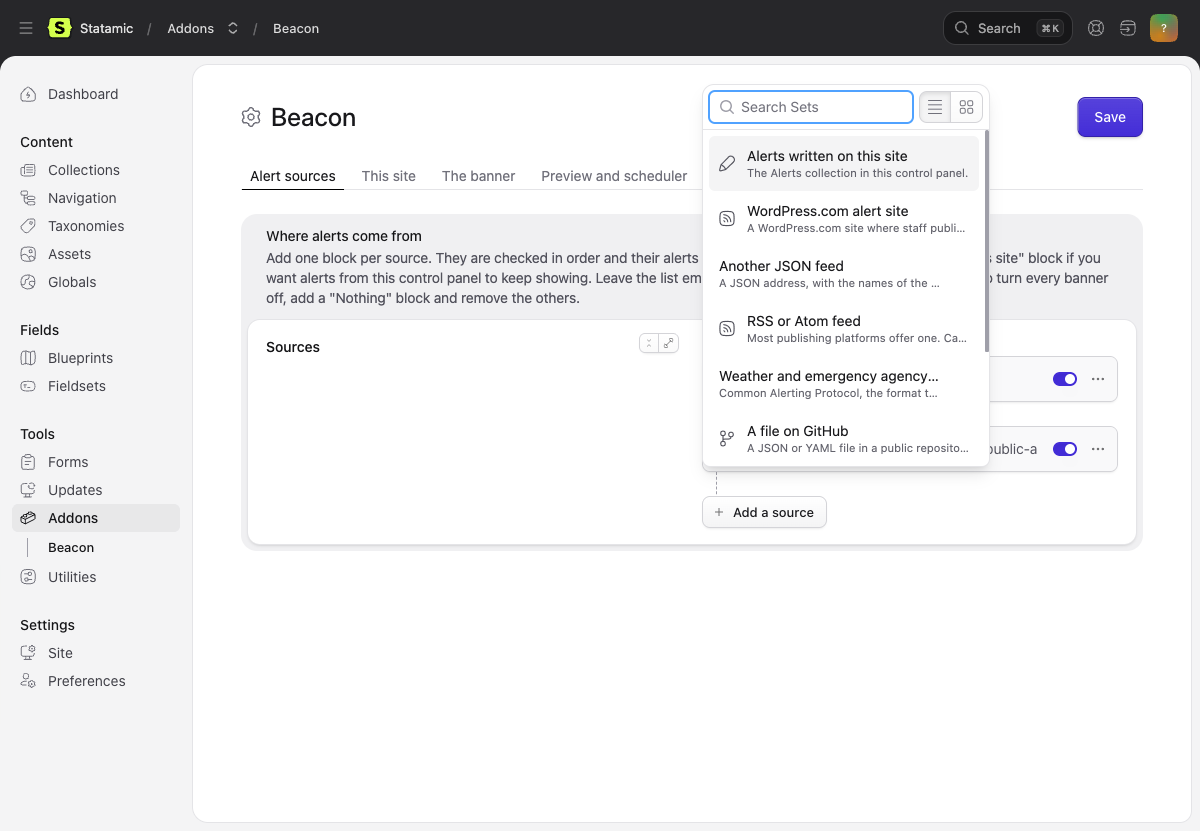
Alert sources tab: click "Add a source" and choose "WordPress.com alert site".
-
Feed address:
https://public-api.wordpress.com/rest/v1.1/sites/YOUR_SITE_ID/posts/?number=20with the alert site's id or address in place ofYOUR_SITE_ID. This reads WordPress.com directly, which keeps working when the institution's own web server does not. Leave "Check every" at 300 unless you have a reason.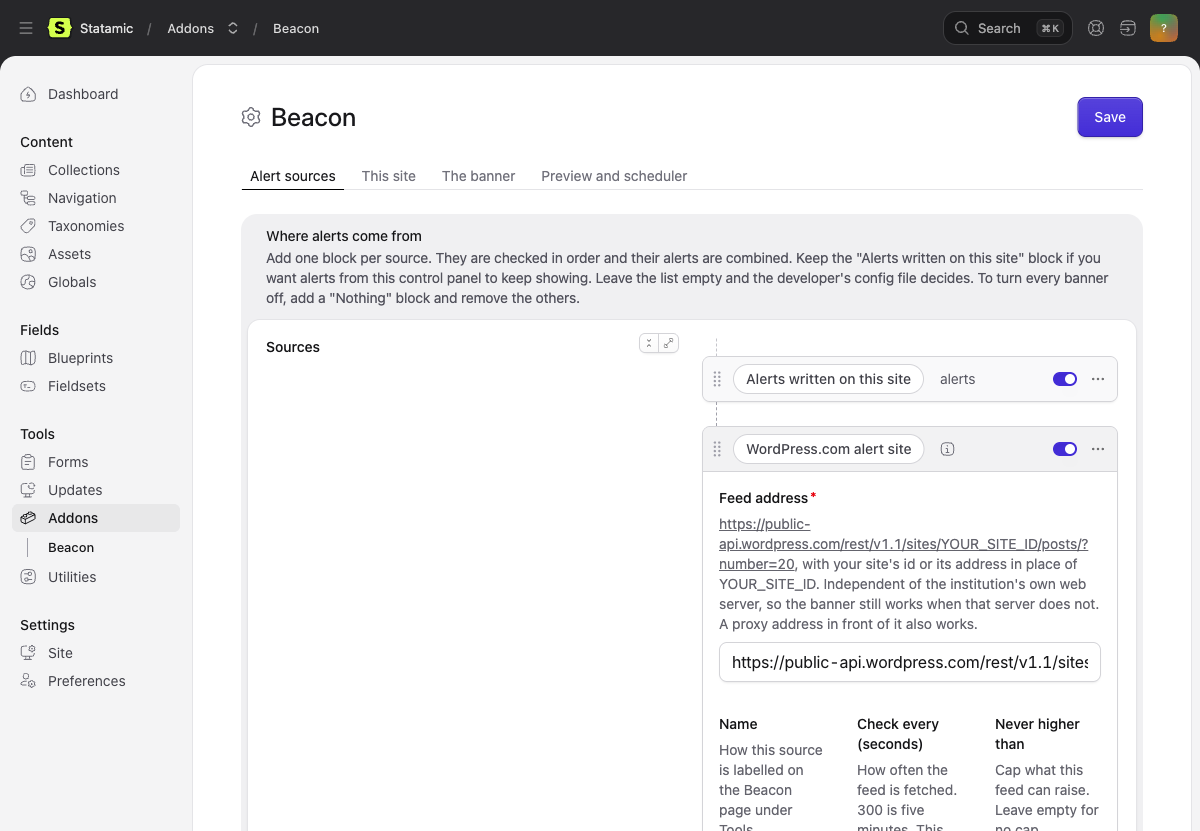
-
Keep the "Alerts written on this site" block if you also want local alerts. Save.
In the config file
'audience' => 'clinic','sources' => [ ['driver' => 'collection'], ['driver' => 'http', 'key' => 'wordpress', 'url' => 'https://public-api.wordpress.com/rest/v1.1/sites/YOUR_SITE_ID/posts/?number=20', 'poll' => 300],],The field map, severity words and emptiness rule default to WordPress.com's shape, so nothing else is needed.
Test it
php please beacon:fetchExpect wordpress ok N alert(s). N is how many posts on the alert site
carry a meaningful category right now; zero is normal on a quiet day.
The Beacon page under Tools shows the fetch time.
To see a banner without waiting for a real alert, a signed-in user with
the preview permission opens any page with ?beacon-preview=emergency.
How it fails
FAILED ... Could not reach the source: WordPress.com is unreachable from the server. The last good alerts stay up for a day.ok 0 alert(s)during a real alert: the post's category is wrong or missing. It must be exactlyurgent-,alert-orfyi-followed by an audience name.- Fetch works, banner missing: the post's audience is not this
site's. A post tagged
urgent-campusdoes not show on a site whose audience isclinic. Or the scheduler is not running: check the Beacon page under Tools.
Migrating a site off a script-tag client
- Remove the old client's script tag and stylesheet link.
- Remove the body class or data attribute the old client read. Beacon reads the audience from its settings.
- Add
{{ beacon }}first inside<body>. - If the site's stylesheet targets the old banner's ids and classes,
turn on "Legacy class names" on the banner tab and set the prefix to
whatever the old classes started with. Restyle
.beaconat leisure and turn it off. - Set the audience and add the WordPress.com block as above.
What changes for visitors: the heading is an h2 not an h1, the banner is a landmark and not a live region, links say what they lead to, emergencies cannot be dismissed, nothing outside the banner moves.
#Part 2: run a WordPress site as an alert source
One WordPress site, posted to by a handful of people, read by every site you run. It works because WordPress.com (or a self-hosted WordPress) serves posts as JSON with no key.
Why this model
- Communications staff already know WordPress. There is nothing new to learn at 2am.
- The source is independent of the sites that show the banner. If your main site is down, the alert about it still comes from somewhere else.
- Categories carry severity and audience, so one post can be an emergency on the clinical sites and information on the campus sites.
Set up the site on WordPress.com
- Create a site at wordpress.com. The free plan is enough. Pick a name
that says what it is, such as
youruniversity-alerts. Set it to public: the API only serves public sites without a key. - Note the site id. Open
https://public-api.wordpress.com/rest/v1.1/sites/YOURSITE.wordpress.com/in a browser; theIDnear the top is it. The address works in place of the id too. - Create the categories. One per severity per audience. Decide your
audience names first (short, lowercase, letters and digits, exact),
then make
urgent-NAME,alert-NAMEandfyi-NAMEfor each. For three audiences that is nine categories. Posts, Categories in wp-admin (/wp-admin/edit-tags.php?taxonomy=category): type the name exactly as the slug should read, such asurgent-campus, and click Add Category. WordPress makes the slug from the name, so a lowercase hyphenated name gives the right slug. Check the Slug column. - Give publishing rights to the people who will post alerts, and to nobody else. Two-factor on every account.
- Turn comments off site-wide. Nobody needs to comment on an emergency.
Publishing an alert
- Posts, Add New. Title is the banner heading. Keep it short.
- Body: the first paragraph is what shows in the banner. To show only
that and link to the rest, press Enter after it, type
/html, choose Custom HTML, click Edit HTML (the block shows a placeholder until you do), type<!--noteaser-->, click Update. Then click below the block and write the rest. Without the marker the whole body shows in the banner and there is no Read more link. - In the Post sidebar, open Categories and tick one per site that should show it, at the right severity. Typing in the search box narrows the list. WordPress drops "Uncategorized" by itself once you tick another.
- Publish. In the panel that opens, under Newsletter, choose Post only unless you mean to email every subscriber the alert. Decide this once for the team and put it in the checklist. Then Publish again.
- Within the poll interval plus a minute, every site with a matching audience shows it.
To end it, unpublish the post (Switch to draft) or delete it. To correct it, edit and update; people who dismissed the old text see the new.
This was followed on a fresh free WordPress.com site on 2026-09-16: three posts, one per severity, one with the marker. All three came through, the marker split the teaser, and each consuming audience saw only its own.
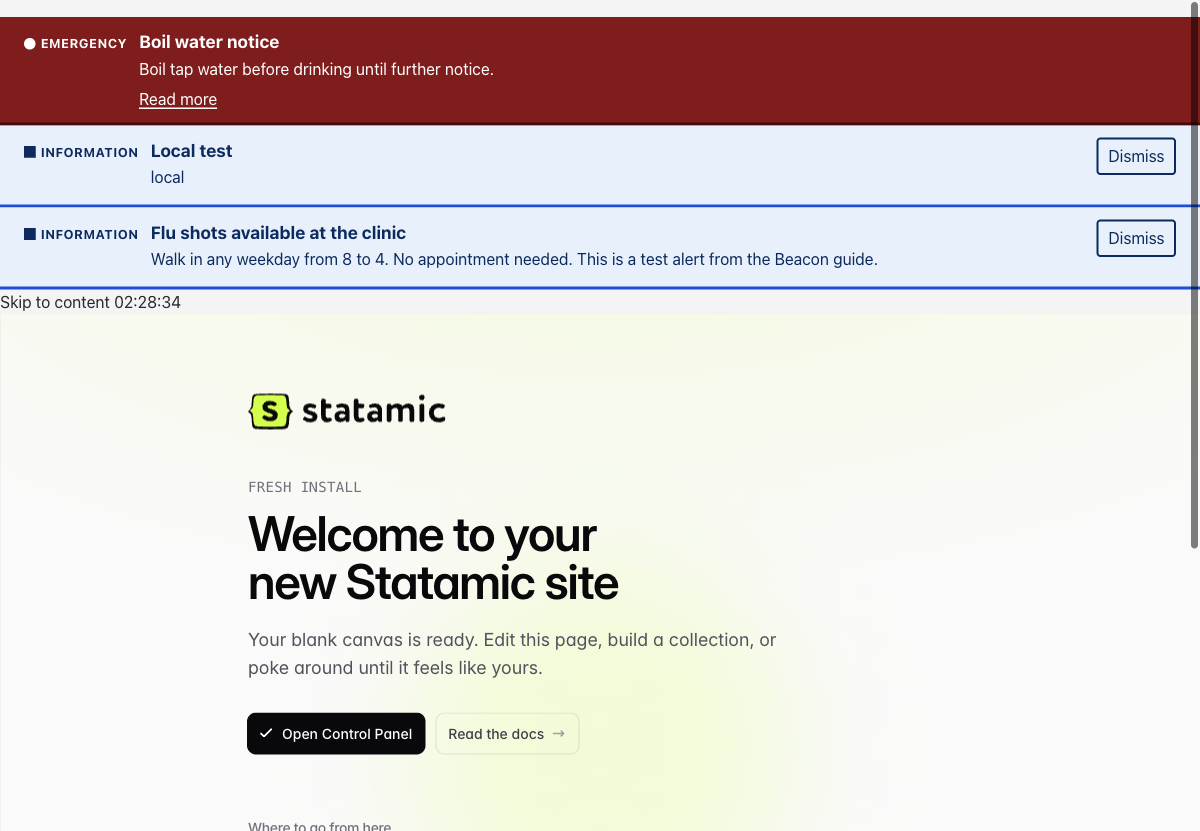
Point Beacon at it
Part 1, with your site's id in the address. Set each consuming site's audience to one of your audience names.
Self-hosted WordPress instead
A self-hosted site serves posts at /wp-json/wp/v2/posts. The shape is
different: the title and body are under rendered, and categories
arrive as ids unless you ask for _embed. Use the "Another JSON feed"
block, or in the config file:
['driver' => 'http', 'key' => 'alerts', 'url' => 'https://alerts.example.edu/wp-json/wp/v2/posts?_embed=wp:term&per_page=20', 'map' => [ 'root' => '', 'id' => 'id', 'title' => 'title.rendered', 'body' => 'content.rendered', 'url' => 'link', 'starts_at' => 'date_gmt', 'audiences' => ['from' => '_embedded.wp:term.*.*.slug', 'pattern' => '^(?<severity>urgent|alert|fyi)-(?<audience>[a-z0-9]+)$'], ], 'severity_map' => ['urgent' => 'emergency', 'alert' => 'warning', 'fyi' => 'info'], 'empty_when' => []],On the "Another JSON feed" block the same values go in the fields:
list at (empty), id id, title title.rendered, body
content.rendered, link link, audiences _embedded.wp:term.*.*.slug,
tag pattern as above, and the three severity words in the table. Tags
work as well as categories; both arrive under wp:term.
Publishing is the same as on WordPress.com. A site behind a login or with the REST API disabled will not work; the API must answer without a cookie.
How it fails
- The API returns an error page: the site is private, or a security plugin blocks the REST API. Beacon keeps the last good alerts and logs it.
- Posts show as
general-informationonly: the category slug is not exactlyseverity-audience. Check Posts, Categories, the Slug column. - An alert shows everywhere: it has no category with an audience, or the consuming sites have no audience set. An alert with no audience is for everyone by design.
- An alert will not go away: it is still published, or the consuming site's scheduler stopped. Check the Beacon page under Tools on that site.
Checklist for the publishing team
- Categories exist for every severity and audience, slugs exact
- Only alert publishers can publish; two-factor on
- A test post per severity has been published and seen on each site, then removed
- Everyone knows: title short, first paragraph is the banner,
<!--noteaser-->to shorten, unpublish to end - Decided once: Post only, or email subscribers too
- Someone owns checking the Beacon page under Tools on each site after the cron line is set up
#An RSS or Atom feed
For any platform that publishes a feed, which is most of them: a blog, a news system, a status page, a Google Sites page, a SharePoint list with RSS on. If you can tag or categorise a post, you can make it an alert.
#What you need
- The feed address. Usually
/feed/,/rss,/atom.xml, or a link in the page's<head>. Paste it in a browser: you should see XML. - A way to put a category or tag on a post. The category name (or its
slug, for RSS) must be
severity-audience:urgent-campus,alert-clinic,fyi-everyone. - Beacon installed and the scheduler running (Operating Beacon).
#On the settings screen
- Alert sources, Add a source, "RSS or Atom feed".
- Feed address: paste it.
- Name: something short for the Tools page.
- Leave "Check every" at 300.
- "Never higher than": set a cap if the feed is not yours.
- "If no category names a severity": leave empty so untagged posts are ignored. Set it to Information only if every post in the feed is meant to be an alert.
- Save.
#In the config file
['driver' => 'feed', 'key' => 'news', 'url' => 'https://news.example.edu/category/alerts/feed/', 'poll' => 300],Optional keys: pattern to change how a category is read (default
^(?<severity>urgent|alert|fyi|emergency|warning|info)-(?<audience>[a-z0-9]+)$),
severity_map to translate words (default urgent, alert, fyi),
default_severity, max_severity, audiences, max_age.
#What Beacon reads
| Alert field | RSS 2.0 | Atom |
|---|---|---|
| id | guid, else link |
id |
| title | title |
title |
| body | content:encoded, else description |
content, else summary |
| url | link |
link rel="alternate" |
| starts_at | pubDate |
published, else updated |
| severity, audiences | category text |
category term="" |
The body may contain <!--noteaser--> to split a teaser from the rest,
exactly as in the WordPress guide. Titles are decoded and shown as
text. Bodies are sanitized.
Tip: many platforms offer a feed per category. Point Beacon at the alerts category's feed rather than the whole site's, so it reads twenty items of alerts rather than twenty items of news.
#Test it
php please beacon:fetchok N alert(s). If N is zero and you expect one, the category text is
not in the severity-audience shape. Open the feed XML and look at the
<category> elements.
#How it fails
Not a feed: root element is <html>: the address is a web page, not the feed. Find the feed link.not well-formed XML: the platform's feed is broken. Beacon keeps the last good alerts. Tell the platform's owner.- Categories present but nothing shows: WordPress puts the
category's display name in RSS, not its slug. Name the category
urgent-campus, notUrgent (Campus).
#Checklist for publishers
- The alert category exists with the exact
severity-audiencename - A test post in it appeared on the site and was then removed
- Everyone knows that the category is what makes a post an alert
#Weather and emergency agencies (CAP)
Common Alerting Protocol is the format national weather and emergency agencies publish warnings in. The US National Weather Service serves it free, with no key, filtered to a point on the map. Around 130 other authorities publish CAP; this guide covers the NWS and says how to approach the rest.
#What you need
- Your latitude and longitude, to four decimals. Right-click the campus
on a map. Downtown Little Rock, for example, is
34.7465,-92.2896. - A way to identify yourself. The NWS requires a User-Agent that says
who you are and how to reach you, such as
Example Hospital (webteam@example.org). Requests without one are refused. - Beacon installed and the scheduler running (Operating Beacon).
#On the settings screen
- Alert sources, Add a source, "Weather and emergency agency (CAP)".
- Feed address:
https://api.weather.gov/alerts/active?point=LAT,LON. - Who to say you are: your name and contact, as above.
- "Never higher than": Warning. This is the default and the right one. A heat advisory should not look like a campus emergency; if a tornado warning warrants an emergency banner, a person publishes one.
- "Show to these audiences": weather alerts are by place, not by category, so name the audiences here. Leave empty for every site.
- Or, for a feed that covers several places (an
area=orzone=address rather than apoint=), fill in "Audiences by area code": one row per SAME county code (six digits,005119) or UGC zone (ARZ044), with the audiences it concerns. Then an alert reaches the audiences of every code it carries, and an alert carrying none of the listed codes is not shown. The codes are in each alert'sgeocodeblock; the NWS lists them per county and zone. - Save.
#In the config file
['driver' => 'cap', 'key' => 'nws', 'url' => 'https://api.weather.gov/alerts/active?point=34.7465,-92.2896', 'headers' => ['User-Agent' => 'Example Hospital (webteam@example.org)', 'Accept' => 'application/geo+json'], 'max_severity' => 'warning', 'audiences' => ['campus', 'clinic']],#What Beacon does with a CAP alert
- Shows only alerts whose
statusisActual. Test, exercise, system and draft messages never render, whatever else they say. - Works out the severity from the CAP
severityandurgencytogether: Extreme, or Severe and Immediate, is emergency; Severe or Moderate is warning; everything else information. Then applies your cap. Override the matrix in the config file withmatrixif you must. - Uses
headlineas the title,descriptionandinstructionas the body (plain text, escaped, paragraphed),effectiveas the start,expiresas the end,webas the link. - Honours
expireseven if the next fetch fails, so a warning that expired at 4pm is down at 4pm. - Replaces an alert with its update rather than showing both.
- With "Audiences by area code" filled in, reads each alert's
geocodevalues (SAME and UGC) and aims the alert at the audiences they map to. - Reads both the JSON the NWS API serves and CAP XML from any publisher,
with or without the
cap:prefix.
#Test it
php please beacon:fetchnws ok N alert(s). Zero on a calm day. To see the path work, pick a
point with weather: the NWS site shows a map of active alerts.
#How it fails
HTTP 403: no User-Agent. Fill in "Who to say you are".not well-formed XMLornot JSON: the API had a bad moment. The last good alerts stay up;expiresstill takes them down on time.- Alerts for the wrong place: check the point.
point=LAT,LON, notLON,LAT.
#Other CAP publishers
Environment Canada, the UK Met Office, MeteoAlarm (Europe) and many
national agencies publish CAP, usually as an Atom feed of CAP documents
or as CAP XML directly. Beacon reads both, but each publisher has its
own way of filtering by area and its own idea of severity, so:
- Find the publisher's feed address for your area.
- Add it with the CAP block, capped at Warning.
- Run
beacon:fetchand read what came back on the Tools page before trusting it on a live site.
#Checklist
- User-Agent filled in
- Cap at Warning
- Audiences named
- One fetch run and the result read
#GitHub as an alert source
GitHub earns its own source for one reason: it is the only option with review, history and branch protection built in. For a banner on every page of a public institution, "two people must approve" and "who changed this at 2am" are governance, not developer convenience. It is also completely independent of the sites that show the banner.
Three modes. Use file unless you have a reason not to.
#What you need
- A GitHub account and a public repository. Private needs a token, and a token expires one day and takes the banner with it.
- Beacon installed and the scheduler running (Operating Beacon).
#Mode 1: a file in a repository (recommended)
A JSON or YAML file of alerts. Edit it through a pull request; the review is your approval gate.
Set up the repository
- Create a public repository, for example
youruniversity/alerts. - Add
alerts.json. Start from docs/alerts.example.json; the shape is in docs/alerts-file.schema.json. An empty file is{"alerts": []}. - Settings, Branches, add a protection rule for
main: require a pull request, require one approval. Now no alert goes live without a second person. - Give the alert publishers write access. They can open pull requests from the GitHub website or the mobile app; nobody needs git.
On the settings screen
Alert sources, Add a source, "A file on GitHub". Owner, repository,
branch (main), file path (alerts.json). Save.
In the config file
['driver' => 'github', 'key' => 'repo', 'mode' => 'file', 'owner' => 'youruniversity', 'repo' => 'alerts', 'ref' => 'main', 'path' => 'alerts.json'],Publishing an alert
Edit alerts.json on GitHub, add an entry, open a pull request, get it
approved, merge. Within the poll interval plus a minute plus GitHub's
CDN cache (short, but measure it for your repository before promising a
number) it is on every site with a matching audience. To end it, remove
the entry the same way, or give it an ends_at.
An entry:
{ "id": "boil-water-2026-03", "title": "Boil water notice", "severity": "emergency", "teaser": "<p>Boil tap water before drinking until further notice.</p>", "body": "<p>Boil tap water before drinking until further notice.</p><p>Details...</p>", "url": "https://example.org/news/boil-water", "audiences": ["campus", "clinic"], "ends_at": "2026-03-02T09:00:00-06:00"}Keep id stable across edits: dismissals are keyed by id plus content,
so an edit re-shows the alert to people who dismissed it, which is what
you want for a correction. markdown can replace body if the writer
prefers it.
#Mode 2: open issues
Each open issue with a label is an alert. Closing it ends the alert. Genuinely usable from a phone at 2am, and the reason it exists.
The limit you must know about
Without a token, GitHub allows 60 API requests an hour per IP address, shared by everything behind that address. One site polling every five minutes is 12. Five sites behind one university gateway is 60, and the sixth request fails with a 403 and no alert. Beacon sends conditional requests, watches the remaining count, shows it on the Tools page, and stops polling before the limit rather than after. An optional token raises it to 5,000. The file mode has none of this.
Set up
-
In the repository, create a label
alert(the marker) and labels for severity and audience:urgent-campus,alert-clinic,fyi-northwest, and so on. Same vocabulary as the WordPress guide. -
On the settings screen: Add a source, "Open issues on GitHub". Owner, repository, label
alert. Token if you have one. Save.A token typed into the screen is saved in plain text to
resources/addons/statamic-beacon.yaml, which most sites commit. If the token must stay out of the repository, leave the field empty and put the source in the config file withenv('BEACON_GITHUB_TOKEN'), as below.
['driver' => 'github', 'key' => 'issues', 'mode' => 'issues', 'owner' => 'youruniversity', 'repo' => 'alerts', 'label' => 'alert', 'token' => env('BEACON_GITHUB_TOKEN')],Publishing
New issue. Title is the banner heading. Body is Markdown; raw HTML in it
is stripped. Add the alert label and one severity-audience label per
site. Close the issue to end the alert.
#Mode 3: a Gist
Same file shape as mode 1, served from a public Gist's raw address. No review, no history worth the name. Offered for a single person who wants the quickest possible setup; not recommended for an institution.
Add a source, "A public Gist", paste the raw address (Raw button on the Gist, then copy the address bar).
#Test it
php please beacon:fetchFor issues mode, also look at "GitHub rate limit" on the Tools page after the first fetch.
#How it fails
- 404 on the file: wrong owner, repository, branch or path, or the
repository is private. Check the raw address in a browser:
https://raw.githubusercontent.com/OWNER/REPO/BRANCH/PATH. The file is not JSON: a syntax error in the last merge. The last good alerts stay up. Fix and merge again.- Issues:
rate limit exhausted: too many sites polling from one address. Add a token, lengthen the poll, or move to file mode. - Issue shows but with no formatting: it is Markdown, not HTML.
**bold**, not<b>.
#Checklist
- Repository public, branch protected, approval required
-
alerts.jsonvalid (jq . alerts.jsonon a laptop) - Publishers can open a pull request from the website
- One test alert merged, seen, and removed
#A JSON feed with no guide of its own
For a system that offers JSON but is none of the others: a custom API, a status page, an internal service. You tell Beacon where each field lives in the response.
#What you need
- The feed address and one sample response. Open it in a browser or run
curl -s ADDRESS | head -c 2000. - Beacon installed and the scheduler running (Operating Beacon).
#Read the sample
Find five things in the response:
- The list. Is the response itself a list (
[...]), or an object with the list inside it ({"items": [...]})? If inside, note the path to it:items, ordata.results. - Per item, the title, body, link and id. Note each path from the
item down:
title, ortitle.rendered, orattributes.headline. - Per item, the severity. Either a field holding a word (
level: "high") or a set of tags (tags: ["urgent-campus"]). - Per item, the audience, if the feed has one. Often the same tags.
- How the feed says "nothing": an empty list, or a count field.
Paths use dots. An asterisk means "each": tags.*.slug reads slug
from every entry under tags, whether tags is a list or an object
keyed by name.
#On the settings screen
Alert sources, Add a source, "Another JSON feed". Fill in the paths
from step 2 to 4. For a severity word that is not info, warning or
emergency, add rows to "Severity words": feed says high, means
Emergency. For tags that carry both severity and audience, fill in the
audiences field and a tag pattern.
#Two worked examples
A status page
{"incidents": [ {"id": "abc", "name": "Patient portal degraded", "impact": "major", "shortlink": "https://status.example.org/i/abc", "incident_updates": [{"body": "We are investigating."}]}]}| Field | Value |
|---|---|
| List of alerts is at | incidents |
| Id field | id |
| Title field | name |
| Body field | incident_updates.0.body |
| Link field | shortlink |
| Severity field | impact |
| Severity words | critical = Emergency, major = Warning, minor = Information, none = Information |
['driver' => 'http', 'key' => 'status', 'url' => 'https://status.example.org/api/v2/incidents/unresolved.json', 'map' => ['root' => 'incidents', 'id' => 'id', 'title' => 'name', 'body' => 'incident_updates.0.body', 'url' => 'shortlink', 'severity' => 'impact'], 'severity_map' => ['critical' => 'emergency', 'major' => 'warning', 'minor' => 'info', 'none' => 'info'], 'empty_when' => []],A tagged list
[ {"key": 12, "headline": "Lot B closed", "html": "<p>Use lot C.</p>", "tags": ["parking", "fyi-campus"], "more": "https://example.edu/parking"}]| Field | Value |
|---|---|
| List of alerts is at | (empty) |
| Id field | key |
| Title field | headline |
| Body field | html |
| Link field | more |
| Audiences field | tags.* |
| Tag pattern | `^(? |
| Severity words | urgent = Emergency, alert = Warning, fyi = Information |
An item whose tags match nothing is skipped, so parking alone is not
an alert. Set "If no severity is found" only if every item should be.
#In the config file
The block's fields map onto map, severity_map, default_severity
and empty_when. empty_when is a set of path => value pairs that,
when all true, mean "no alerts", such as ['found' => 0]. The
WordPress feed reference shows a
complete map for a real feed.
#Test it
php please beacon:fetchThen look at the Tools page. ok 0 alert(s) with a feed that has items
means the paths are wrong or the severity was not found. Check one path
at a time against the sample.
#How it fails
not JSON: the address returns HTML (a login page, an error). Open it in a browser.Nothing iterable at items: the list path is wrong.- Alerts with no body: the body path points at an object, not a
string. Add the last step, such as
.rendered.
#Checklist
- Sample response saved somewhere
- Every path checked against it
- Severity words cover every value the feed can send
- One fetch run and the result read
#The WordPress alert feed, as Beacon reads it
The feed contract Beacon's http driver defaults to: a WordPress.com
site where staff publish one post per alert, read through WordPress.com's
public API. This is the shape the "WordPress.com alert site" block on the
settings screen expects, and the shape the local alerts collection is
modelled on. Assembled on 2026-09-16 from a live site of this kind and
the API's own output.
#The parts
comms staff --> a WordPress.com site --> WordPress.com public API | (optional) a caching proxy | BeaconThe source site is a WordPress.com site. Communications staff publish one post per alert. The post's categories say how serious it is and which sites show it.
The public API serves a public site's posts as JSON with no key and
no login:
https://public-api.wordpress.com/rest/v1.1/sites/{SITE}/posts/, where
{SITE} is the numeric site id or the site's address. This is what
Beacon reads by default.
A proxy, if the institution has one, is a script on its own web
server that reads the same API, caches the answer, and returns it wrapped
as JSONP (callback({...})) for an older script-tag client. Beacon can
read that too; it unwraps the wrapper as text and never runs it. The
direct address is recommended because it does not depend on the
institution's own server: a banner whose job includes announcing that
the server is down should not be served by that server.
The legacy client, where one exists, loaded the proxy with a
<script> tag on every page and injected a banner. Beacon replaces it.
The README lists what such a client did and Beacon does not.
#The category vocabulary
A category slug is {severity}-{audience}:
| Slug prefix | Means | Beacon severity |
|---|---|---|
urgent- |
An emergency | emergency |
alert- |
A warning | warning |
fyi- |
Information | info |
The suffix is an audience name: a short lowercase token shared by the
sites that should show the alert, such as campus, clinic, intranet
or north. Each consuming site declares exactly one audience in Beacon's
settings.
So urgent-clinic is an emergency for the clinical sites, and a post
carrying both urgent-clinic and fyi-campus is an emergency on the
clinical sites and an emergency on the campus sites too, because the
highest severity on a post wins everywhere it shows.
A category that does not fit the pattern carries no meaning to Beacon
and is ignored: general-information, a bare audience name, anything
else. A post with no meaningful category is not an alert.
The prefix words (urgent, alert, fyi) are the defaults and can be
changed per source with severity_map; the pattern itself with
pattern.
#The post shape
What the API returns, trimmed to what Beacon reads:
{ "found": 1, "posts": [ { "ID": 400, "date": "2026-01-25T15:00:00-06:00", "title": "Inclement Weather Update", "URL": "https://alerts.example.wordpress.com/2026/01/25/inclement-weather-update/", "content": "<p>Short version.</p><!--noteaser--><p>Long version.</p>", "categories": { "Urgent Campus": { "slug": "urgent-campus", "name": "Urgent Campus" } } } ]}Things to know about it:
categoriesis an object keyed by category name, not a list. Beacon iterates its values. A reader that assumed a list would find nothing.foundis authoritative.found: 0means no alerts, whateverpostsholds.titlemay contain HTML entities such as’. Beacon decodes them and renders the title as text.contentis HTML from the WordPress editor. Beacon sanitizes it.<!--noteaser-->incontentmarks the fold: what comes before it shows in the banner with a Read more link toURL; without it the whole body shows inline.dateis the publish date. Beacon uses it as the alert's start. There is no end date; an alert ends when the post is unpublished or deleted.- A proxy may add fields of its own (
cache_state,cache_age). Beacon ignores anything it does not map, and a test proves such fields do not cause a page-cache flush.
#Fields Beacon reads, and nothing else
| Beacon field | From |
|---|---|
| id | ID |
| title | title, entities decoded |
| body, teaser | content, split at <!--noteaser-->, each part sanitized |
| url | URL, scheme checked |
| starts_at | date |
| severity, audiences | categories.*.slug through the pattern `^(urgent |
Everything else in the payload (author, excerpt, meta, tags,
attachments, and so on) is never read.
#Addresses
| Purpose | Address |
|---|---|
| Posts | https://public-api.wordpress.com/rest/v1.1/sites/{SITE}/posts/?number=20 |
| Site id from address | https://public-api.wordpress.com/rest/v1.1/sites/{your-site}.wordpress.com/ (the ID field) |
| Categories | https://public-api.wordpress.com/rest/v1.1/sites/{SITE}/categories/ |
number=20 reads the twenty newest posts, which is plenty for a site
that holds alerts and nothing else. Raise it if the site also holds
other posts, or better, point the address at a category feed.
#Self-hosted WordPress
A self-hosted site's REST API (/wp-json/wp/v2/posts?_embed=wp:term) has
a different shape: title.rendered, content.rendered, link, and
categories under _embedded['wp:term']. The
WordPress guide gives the map.