
#Overview
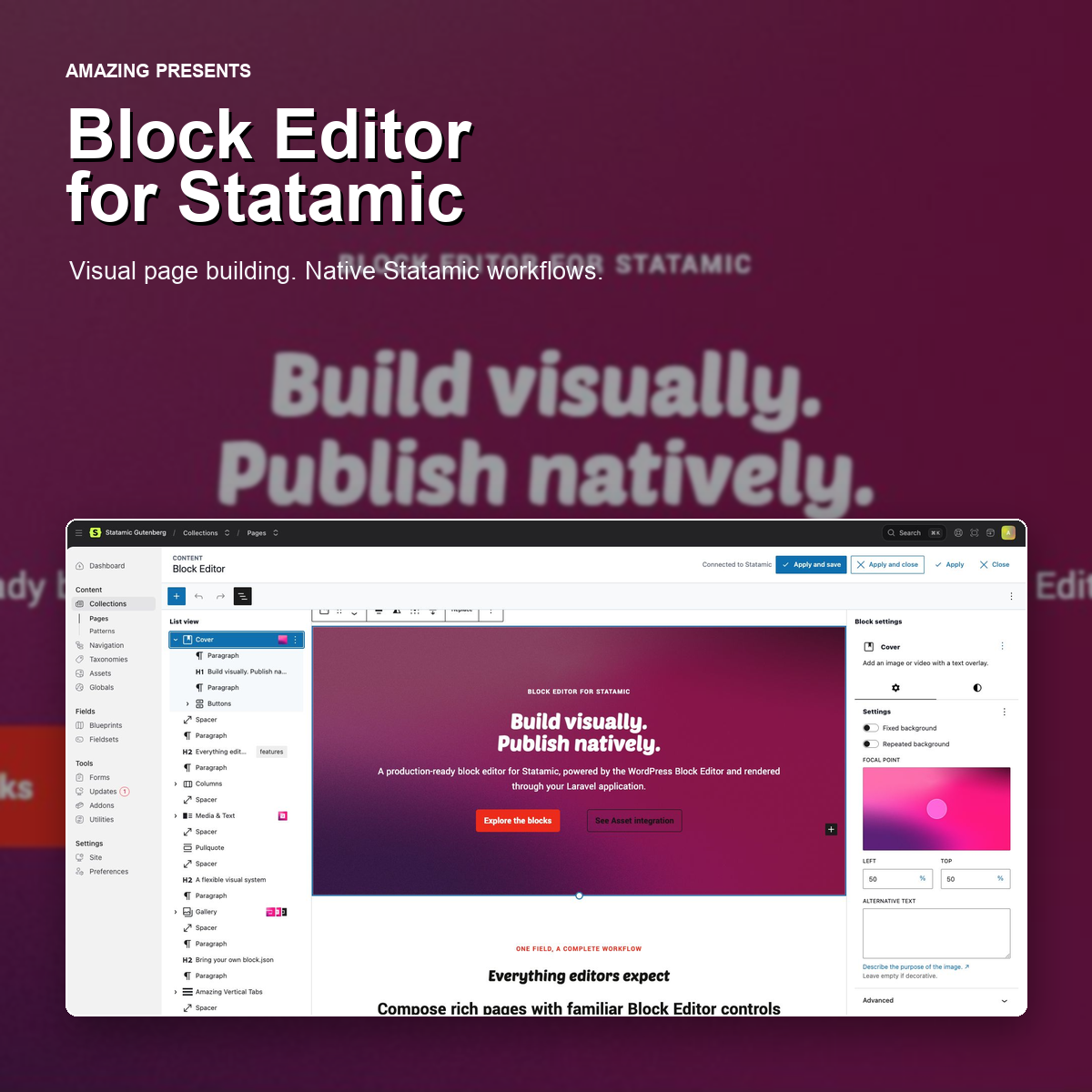
Block Editor for Statamic adds a block-based content fieldtype to the Statamic Control Panel. Editors work in a full-size editor overlay while Statamic remains responsible for entries, assets, permissions, publishing, and frontend output.
Content is stored as WordPress-compatible serialized block markup:
<!-- wp:paragraph --><p>Example content</p><!-- /wp:paragraph -->This storage format keeps the block structure portable while the addon provides the Statamic-specific media browser, patterns, project configuration, and frontend renderer. A WordPress installation or WordPress backend is not required.
The addon includes:
- A
gutenbergfieldtype for collection and taxonomy blueprints. - A full-size Block Editor overlay inside the Statamic Control Panel.
- Core text, media, layout, design, and embed blocks.
- Statamic Asset browsing, searching, uploading, and metadata editing.
- Native block supports for alignment, colors, typography, spacing, borders, dimensions, shadows, and layouts.
- Project-level design configuration through
theme.json. - Native block style variations registered from the Statamic application.
- Synced and unsynced patterns managed in Statamic.
- Automatic exposure of Bard sets as blocks.
- Project-local custom blocks based on
block.json. - Blade, PHP, and sanitized static HTML rendering on the frontend.
#Content Field, Not An Entry Editor
Block Editor for Statamic edits body content inside a Statamic field. Statamic remains the entry editor and the source of truth for title, slug, publication status, date, taxonomies, SEO fields, revisions, permissions, and separate cover fields. Those fields are intentionally not duplicated inside the Block Editor.
Use the Block Editor where a blueprint would normally contain a rich body field. A recommended structure is:
- Main: Statamic title field followed by the Block Editor body field.
- Sidebar: slug, date, taxonomy terms, cover image, and publishing controls.
- SEO: project-specific SEO fields and previews.
For example:
tabs: main: display: Main sections: - fields: - handle: title field: type: text required: true - handle: content field: type: gutenberg display: Body content sidebar: display: Sidebar sections: - fields: - handle: topics field: type: terms taxonomies: - topics - handle: cover_image field: type: assets container: assets max_files: 1Statamic supplies its normal slug, date, status, revision, and publishing UI around this blueprint. Render a visible entry title in the Statamic template, or insert a Heading block when the title belongs to the body layout. No title is automatically rendered above the Block Editor canvas.
#Installation
#Requirements
- Laravel with Statamic 6.
- PHP and Composer versions supported by the host Statamic installation.
- At least one Statamic Asset container. The default handle is
assets.
The distributed package already contains the compiled Control Panel and frontend assets. Node.js is not required to install or use the addon.
#Install the package
Run the following from the root of the Laravel and Statamic project:
composer require amazingbv/statamic-gutenbergStatamic normally publishes addon assets during installation. The following commands can also be run explicitly to publish the config and latest assets and to clear cached configuration:
php artisan vendor:publish --tag=statamic-gutenberg --forcephp artisan optimize:clearThe Block Editor fieldtype is now available in the blueprint editor under its
technical fieldtype handle, gutenberg.
#Update the addon
Update the package and republish its assets from the project root:
composer update amazingbv/statamic-gutenbergphp artisan vendor:publish --tag=statamic-gutenberg --forcephp artisan optimize:clearReview the release notes before updating a production project.
#Configure The Field
#Add the field to a blueprint
Add a field with type gutenberg to a collection, taxonomy, or other supported
Statamic blueprint:
tabs: main: display: Main sections: - fields: - handle: title field: type: text required: true - handle: content field: type: gutenberg display: Content assets_container: assets render_mode: blade allow_unknown_blocks: false sanitize_html: trueThe field can also be added through Statamic's visual blueprint editor. Its
technical fieldtype handle is gutenberg, and its configuration section is
labelled Block Editor.
#Field options
Field options override the matching values from
config/statamic-gutenberg.php.
| Option | Type | Description |
|---|---|---|
allowed_blocks |
array | Block names that may be inserted and rendered by this field. |
assets_container |
string | Default Asset container for media browsing and uploads. |
render_mode |
string | Use blade for block rendering or raw for saved HTML output. |
allow_unknown_blocks |
boolean | Allow unsupported blocks to render their saved static HTML. |
sanitize_html |
boolean | Sanitize static, unknown, and raw HTML before frontend output. |
Example with a deliberately small block selection:
content: type: gutenberg display: Article content allowed_blocks: - core/paragraph - core/heading - core/list - core/list-item - core/quote - core/image assets_container: article_imagesCustom blocks discovered in the configured custom blocks directory are added
automatically. Their required parent, child, and template dependencies are also
included when declared in block.json.
An explicitly empty allowed_blocks list allows no normal content blocks for
that field. The internal core/block reference type remains available where it
is required to resolve synced patterns.
#Editor Workflow
The field opens the Block Editor in a full-size overlay over the Statamic entry form. The Statamic sidebar and top navigation remain available, while the editor uses the remaining workspace.
The editor header provides four actions:
- Apply and save applies the current block content to the field and saves the Statamic entry.
- Apply and close applies the current content to the field and closes the overlay.
- Apply applies the current content without closing the overlay.
- Close closes the overlay without applying the latest editor changes. A confirmation is shown because unapplied changes will be lost.
The editor includes the standard block inserter, list view, block toolbar, document sidebar, block inspector, pattern browser, undo and redo history, and visual and code editing modes. The Code Editor view provides syntax highlighting for the serialized HTML and JSON block attributes.
#Live Preview split view
When the field is opened from Statamic Live Preview, the overlay mounts inside the Live Preview editor pane instead of covering the preview iframe. The editor pane is widened within the available viewport and remains resizable with Statamic's divider.
List View starts closed in this mode. When the editor pane is compact, List View and Block settings open as drawers over the canvas so the editor and preview do not become a vertically stacked interface.
In Live Preview, Apply updates the field value and refreshes the preview without saving the entry. Use Apply and save when the entry should be saved, or Apply and close to update the field and return to the Statamic form.
#Content widths
The editor canvas uses all available workspace width without introducing horizontal page scrolling. Individual blocks follow the project layout widths:
- Normal blocks use the configured content width.
- Wide blocks use the configured wide width where available.
- Full-width blocks extend to the edges of the editor canvas.
The frontend uses the same content, wide, and full-width rules when the template
contains the required .sgb-content wrapper.
#Frontend Rendering
#Antlers templates
Output an augmented Block Editor field like a normal Statamic field:
<main class="sgb-content"> {{ content }}</main>Add the addon styles in the document <head> and the scripts near the end of
the document body:
<!doctype html><html lang="{{ site:short_locale }}"><head> {{ gutenberg:styles }}</head><body> <main class="sgb-content"> {{ template_content }} </main> {{ gutenberg:scripts }}</body></html>Available tags:
| Tag | Output |
|---|---|
{{ gutenberg }} |
All required frontend styles and scripts. |
{{ gutenberg:assets }} |
Alias that outputs all required styles and scripts. |
{{ gutenberg:styles }} |
Core block CSS, project theme CSS, block styles, and custom block styles. |
{{ gutenberg:scripts }} |
Core frontend interactions and custom block scripts. |
Using the separate style and script tags is recommended because it allows the styles to load in the document head without placing scripts there.
#The content wrapper
Wrap rendered block content in .sgb-content. The class provides layout rules
for:
- Content, wide, and full-width alignment.
- Flex and grid block layouts.
- Block spacing and gaps.
- Responsive media and embed behavior.
- Frontend interaction hooks for accordions, tabs, and custom blocks.
- Scoped
theme.jsonand registered block-style CSS.
Full-width blocks can escape the normal content width and span the viewport. Normal inner blocks remain constrained when a container enables the Inner blocks use content width option.
#Render content from PHP
Use the facade when content needs to be rendered outside normal field augmentation:
use Gutenberg; echo Gutenberg::render($entry->get('content'));#Register a Blade renderer
Register or override a renderer from a Laravel service provider:
use Gutenberg; public function boot(): void{ Gutenberg::block('project/notice', [ 'view' => 'blocks.notice', ]);}The configured Blade view receives:
$block: the parsed block object.$attrs: the block attributes.$inner: rendered inner block HTML as anHtmlString.
A closure can be used instead of a Blade view:
use Gutenberg; Gutenberg::block( 'project/notice', function ($block, string $inner, $renderer): string { return view('blocks.notice', [ 'attrs' => $block->attributes(), 'inner' => $inner, ])->render(); });#Configuration Reference
Publish the config file with:
php artisan vendor:publish --tag=statamic-gutenberg --forceThe project configuration is stored at:
config/statamic-gutenberg.php#Main options
| Option | Default | Purpose |
|---|---|---|
allowed_blocks |
Core block list | Global block allowlist for the editor and renderer. |
assets_container |
assets |
Default Asset container for media browse and upload operations. |
icons_path |
resources/vendor/statamic-gutenberg/icons.php |
Project file containing Icon block definitions. |
theme_json_path |
resources/vendor/statamic-gutenberg/theme.json |
Optional project-level theme.json. |
block_styles_path |
resources/vendor/statamic-gutenberg/block-styles.php |
Project file containing native block style variations. |
block_styles |
[] |
Inline block style definitions. |
custom_blocks_path |
resources/vendor/statamic-gutenberg/blocks |
Directory containing project-local custom blocks. |
bard_blocks |
enabled | Discovery, naming, preview, and rendering settings for Bard sets. |
patterns |
default handles | Collection, taxonomy, and field handles for managed patterns. |
icons |
[] |
Inline SVG definitions for the Icon block. |
render_mode |
blade |
Default frontend render mode. |
allow_unknown_blocks |
false |
Whether unsupported blocks may output saved HTML. |
sanitize_html |
true |
Whether static and raw HTML is sanitized. |
blocks |
[] |
Block names mapped to Blade views or render definitions. |
#Render modes
blade is the recommended default. It parses the serialized content, renders
inner blocks recursively, resolves synced patterns, uses registered Blade or
custom render files, and sanitizes static fallback markup.
raw skips the block renderer and outputs the saved static HTML. Keep
sanitize_html enabled unless all content and block sources are fully trusted.
#Unknown blocks
With allow_unknown_blocks set to false, unsupported blocks are preserved in
stored content but render empty on the frontend. This prevents an unknown block
from bypassing the configured renderer.
With allow_unknown_blocks set to true, an unsupported block may render its
saved static HTML. The output is still sanitized when sanitize_html is
enabled.
#Supported Blocks
The default allowlist contains the following block families.
#Text and content
| Block | Handle |
|---|---|
| Paragraph | core/paragraph |
| Heading | core/heading |
| List | core/list |
| List item | core/list-item |
| Quote | core/quote |
| Pullquote | core/pullquote |
| Preformatted | core/preformatted |
| Verse | core/verse |
| Code | core/code |
| Details | core/details |
| Math | core/math |
| Table | core/table |
| More | core/more |
| Page break | core/nextpage |
#Media
| Block | Handle |
|---|---|
| Image | core/image |
| Gallery | core/gallery |
| Audio | core/audio |
| Video | core/video |
| File | core/file |
| Cover | core/cover |
| Media & Text | core/media-text |
#Layout and design
| Block | Handle |
|---|---|
| Buttons | core/buttons |
| Button | core/button |
| Columns | core/columns |
| Column | core/column |
| Group, Row, Stack, and Grid | core/group variations |
| Accordion | core/accordion and its internal child blocks |
| Separator | core/separator |
| Spacer | core/spacer |
| Icon | core/icon |
#Reusable references and embeds
| Block | Handle |
|---|---|
| Synced pattern reference | core/block |
| Embed | core/embed |
core/block is an internal dependency used for synced patterns. It is not
presented as a normal standalone block in the block inserter.
The global or per-field allowed_blocks option can be used to remove blocks
that are not appropriate for a project or content type.
#Block Design Controls
The addon exposes native Block Editor support controls where they are relevant to a block. Supported controls include:
- Normal, wide, and full-width alignment.
- Text alignment for paragraphs and headings, including left, center, right, and justified text.
- Anchors and custom CSS classes.
- Text, background, link, border, and gradient colors.
- Font family, font size, weight, line height, text transformation, decoration, and other supported typography properties.
- Margin, padding, and block gap spacing.
- Border color, width, style, and radius.
- Width, minimum width, height, minimum height, and aspect ratio where the block supports them.
- Box shadows and theme shadow presets.
- Flex, grid, content-constrained, and flow layouts.
- Background images and inner content-width controls for supported containers.
The renderer reads the same saved block attributes and applies their classes and styles on the frontend. When static saved markup does not contain every wrapper class or style, the renderer enriches that markup from the serialized block attributes.
Some blocks need styles on a child element instead of the outer wrapper. The addon handles the common special cases, including images, buttons, search controls, and media elements.
Custom blocks should declare their own native supports in block.json. Those
declarations remain authoritative; the addon only adds attributes needed to
persist selected support values.
#Media Library
The editor uses Statamic Assets rather than WordPress media storage. Its media browser provides a WordPress-compatible attachment layer for editor components while all files and metadata remain managed by Statamic.
#Browse and select assets
The media browser shows every Asset container the current Control Panel user may view. Containers appear as top-level drives in the folder tree. Folders can be expanded and collapsed without navigating away, while selecting a folder loads its assets.
The browser supports:
- Multiple authorized Asset containers.
- Expandable container and folder trees.
- Searching across visible containers.
- Pagination and media-type filtering.
- Uploading to the active container and folder.
- Single selection for normal media blocks.
- Multiple selection for galleries.
- Asset previews using the original aspect ratio.
- Editing title, alternative text, and caption metadata.
Uploads use Statamic authorization, container validation rules, safe filenames, and block-specific MIME restrictions.
#Media filters by block
| Block | Selectable assets |
|---|---|
| Image | Images and SVG files. |
| Gallery | Multiple images and SVG files. |
| Cover | Images, SVG files, and video where supported. |
| Media & Text | Images, SVG files, and video where supported. |
| Audio | Audio files. |
| Video | Video files. |
| Video poster | Images and SVG files. |
| File | General files permitted by the Asset container. |
#Stored identity
Media blocks store the Statamic asset identity in statamicId alongside the
numeric attachment identifier used by the editor. This allows existing content
to hydrate the correct Statamic asset after saving and reopening an entry.
#Metadata
Changes to title, alternative text, and caption in the media detail panel are written back to the Statamic Asset metadata when the user has update permission.
#Media limitations
The media adapter does not implement destructive WordPress media operations or the WordPress image editor. Use Statamic's normal Assets area for deleting, cropping, rotating, or replacing original files.
Configure the default container globally:
// config/statamic-gutenberg.php 'assets_container' => 'assets',Or override it for a field:
content: type: gutenberg assets_container: downloads#Theme JSON
An optional project-level theme.json controls editor settings and generates
matching scoped CSS for the editor and frontend. If the file does not exist,
the addon does not add theme-specific settings or styles.
The default location is:
resources/vendor/statamic-gutenberg/theme.jsonCreate the directory and file in the host Statamic project:
mkdir -p resources/vendor/statamic-gutenbergCommon supported settings include:
settings.color.palettesettings.color.gradientssettings.typography.fontSizessettings.typography.fontFamiliessettings.spacing.spacingSizessettings.spacing.unitssettings.layout.contentSizesettings.layout.wideSizesettings.shadow.presetssettings.dimensionsstylesstyles.elementsstyles.blocksstyles.css
#Basic example
{ "$schema": "https://schemas.wp.org/trunk/theme.json", "version": 3, "settings": { "layout": { "contentSize": "720px", "wideSize": "1180px" }, "color": { "palette": [ { "name": "Brand", "slug": "brand", "color": "#003f5c" }, { "name": "Accent", "slug": "accent", "color": "#ef5675" } ] }, "typography": { "fontSizes": [ { "name": "Small", "slug": "small", "size": "0.875rem" }, { "name": "Large", "slug": "large", "size": "2rem" } ] } }, "styles": { "elements": { "heading": { "typography": { "fontWeight": "700" } } } }}The generated editor CSS is scoped to the editor canvas rather than the entire
Control Panel. The frontend CSS is scoped to .sgb-content. This prevents
project typography and element styles from changing editor toolbars, modals, or
other Statamic interface elements.
#Fonts and project files
Files referenced by theme.json can be stored next to the theme file:
resources/vendor/statamic-gutenberg/theme.jsonresources/vendor/statamic-gutenberg/assets/fonts/proxima/proxima-400.woff2Reference them with WordPress-compatible file:./... paths:
{ "settings": { "typography": { "fontFamilies": [ { "name": "Proxima", "slug": "proxima", "fontFamily": "\"Proxima\", sans-serif", "fontFace": [ { "fontFamily": "\"Proxima\"", "fontStyle": "normal", "fontWeight": "400", "fontDisplay": "swap", "src": [ "file:./assets/fonts/proxima/proxima-400.woff2" ] } ] } ] } }}#Variable fonts with Unicode subsets
The supported WordPress fontFace descriptors are:
ascentOverridedescentOverridefontDisplayfontFamilyfontFeatureSettingsfontStylefontStretchfontVariationSettingsfontWeightlineGapOverridesizeAdjustsrcunicodeRange
Multiple records may use the same family, style, and variable weight range when each record points to another WOFF2 subset:
resources/vendor/statamic-gutenberg/theme.jsonresources/vendor/statamic-gutenberg/assets/fonts/project-mono-latin.woff2resources/vendor/statamic-gutenberg/assets/fonts/project-mono-extended.woff2{ "version": 3, "settings": { "typography": { "fontFamilies": [ { "name": "Project Mono", "slug": "project-mono", "fontFamily": "\"Project Mono\", monospace", "fontFace": [ { "fontFamily": "\"Project Mono\"", "fontStyle": "normal", "fontWeight": "100 900", "fontDisplay": "swap", "fontVariationSettings": "\"wght\" 100", "unicodeRange": "U+0000-00FF", "src": [ "file:./assets/fonts/project-mono-latin.woff2" ] }, { "fontFamily": "\"Project Mono\"", "fontStyle": "normal", "fontWeight": "100 900", "fontDisplay": "swap", "unicodeRange": "U+0100-024F, U+1E00-1EFF", "src": [ "file:./assets/fonts/project-mono-extended.woff2" ] } ] } ] } }}unicodeRange accepts comma-separated Unicode values, ranges, and wildcards
such as U+0000-00FF or U+4??. Invalid ranges are omitted from generated CSS.
Every safe file:./... source is added to the theme asset allowlist and served
through the addon.
The addon serves safe relative files through:
/vendor/statamic-gutenberg/theme/...Paths cannot escape the configured theme directory.
For the complete format, refer to the official theme.json reference.
#Block Styles
Block styles are native style variations displayed in the standard Styles
panel for the selected block. Selecting a style adds the standard
is-style-{name} class to saved content. The addon generates matching editor
and frontend CSS from the supplied style object.
Styles can be registered from a project file, the published config, or a Laravel service provider. When the same block and style name is registered more than once, the last application-provided definition wins.
#Register styles from a project file
The default file is:
resources/vendor/statamic-gutenberg/block-styles.phpExample:
<?php return [ 'core/paragraph' => [ [ 'name' => 'lead', 'label' => 'Lead', 'style' => [ 'typography' => [ 'fontSize' => 'var:preset|font-size|large', 'fontWeight' => '700', ], ], ], ], [ 'blocks' => ['core/heading', 'core/paragraph'], 'name' => 'eyebrow', 'label' => 'Eyebrow', 'isDefault' => false, 'style' => [ 'typography' => [ 'fontSize' => '0.875rem', 'fontWeight' => '700', 'textTransform' => 'uppercase', ], ], ],];#Register styles in config
// config/statamic-gutenberg.php 'block_styles' => [ 'core/button' => [ [ 'name' => 'brand-button', 'label' => 'Brand button', 'style' => [ 'color' => [ 'background' => 'var:preset|color|brand', 'text' => '#ffffff', ], ], ], ],],#Register styles at runtime
Register a style in the boot method of a Laravel service provider:
use Gutenberg; public function boot(): void{ Gutenberg::blockStyle('core/paragraph', [ 'name' => 'lead', 'label' => 'Lead', 'style' => [ 'typography' => [ 'fontWeight' => '700', ], ], ]);}#Supported style fields
| Field | Description |
|---|---|
name |
Required style slug. The saved class becomes is-style-{name}. |
label |
Optional editor label. A label is generated from the name when omitted. |
isDefault or is_default |
Optional boolean indicating the default style. |
style |
Optional theme.json-shaped style object. |
The style object supports color, typography, spacing, borders, dimensions,
shadows, nested elements, pseudo selectors, and preset references such as
var:preset|color|brand.
Use styles.css in theme.json or project CSS for raw CSS that cannot be
expressed through the structured style object.
#Icons
The Icon block reads SVG definitions from project configuration. SVG markup is sanitized before it is exposed to the editor or rendered on the frontend.
The recommended file location is:
resources/vendor/statamic-gutenberg/icons.phpExample:
<?php return [ 'check' => '<svg viewBox="0 0 24 24" aria-hidden="true"><path d="M20 6 9 17l-5-5"/></svg>', 'alert' => [ 'label' => 'Alert', 'svg' => '<svg viewBox="0 0 24 24" aria-hidden="true"><path d="M12 2 2 22h20z"/></svg>', ],];Values can be raw SVG strings or arrays containing label and svg or
content keys.
Icons can also be defined directly in the published config:
'icons' => [ 'arrow-right' => [ 'label' => 'Arrow right', 'svg' => '<svg viewBox="0 0 24 24" aria-hidden="true"><path d="M5 12h14M13 5l7 7-7 7"/></svg>', ],],The file-based approach is recommended because it keeps larger SVG definitions
out of the main config file. The legacy
resources/statamic-gutenberg/icons.php location remains available as a
fallback.
#Patterns
Patterns are reusable block compositions managed as normal Statamic entries. They appear in the standard Patterns tab of the block inserter, including search, previews, categories, drag and drop, and synced status.
#Install the pattern collection
Publish the collection, taxonomy, and blueprint stubs:
php artisan vendor:publish --tag=statamic-gutenberg-patternsThis creates:
content/collections/gutenberg_patterns.yamlcontent/taxonomies/gutenberg_pattern_categories.yamlresources/blueprints/collections/gutenberg_patterns/pattern.yamlresources/blueprints/taxonomies/gutenberg_pattern_categories/category.yamlThe collection appears in the Control Panel as Patterns. The taxonomy appears as Pattern Categories.
#Pattern fields
| Field | Purpose |
|---|---|
title |
Pattern title shown to editors. |
content |
Block Editor content contained in the pattern. |
sync_status |
synced or unsynced. |
inserter |
Controls whether a published pattern appears in the inserter. |
gutenberg_pattern_categories |
Pattern category taxonomy terms. |
description |
Optional description shown in pattern metadata. |
keywords |
Optional search keywords. |
viewport_width |
Optional preferred preview width. |
block_types |
Optional block types associated with the pattern. |
post_types |
Optional post types associated with the pattern. |
template_types |
Optional template types associated with the pattern. |
Only published entries are loaded. Draft patterns are ignored. A published
pattern with inserter disabled remains available for existing synced
references but is hidden from new insertions.
#Synced and unsynced patterns
- An unsynced pattern inserts copies of its blocks. Editors can modify the inserted blocks without changing the source pattern.
- A synced pattern inserts a
core/blockreference. Updating the source pattern changes every frontend location that references it.
Synced patterns are rendered by looking up the referenced Statamic entry and passing its content through the normal frontend renderer. Missing, unpublished, or circular references render empty.
#Pattern categories
Assign one or more Pattern Category taxonomy terms to a pattern. The terms are mapped to the standard pattern categories used by the inserter, so patterns can appear in project-defined categories as well as All and My patterns.
#Custom pattern handles
If the project already uses another collection, taxonomy, or field naming
scheme, change the patterns config values:
'patterns' => [ 'collection' => 'patterns', 'taxonomy' => 'pattern_categories', 'content_field' => 'content', 'sync_status_field' => 'sync_status', 'categories_field' => 'pattern_categories', 'description_field' => 'description', 'keywords_field' => 'keywords', 'viewport_width_field' => 'viewport_width', 'block_types_field' => 'block_types', 'post_types_field' => 'post_types', 'template_types_field' => 'template_types', 'inserter_field' => 'inserter',],#Bard Sets As Blocks
Existing Bard sets can be exposed automatically as blocks. This makes it possible to keep project-specific Statamic fieldsets while placing them in the same editor as native and custom blocks.
When enabled:
- Bard sets are discovered from project blueprints and fieldsets.
- Each set is registered as a block in the inserter.
- Set fields are edited in the block inspector sidebar.
- Field values are stored in the block attributes.
- The editor canvas displays a server-rendered preview.
- The frontend uses the configured Bard set view.
The default configuration is:
'bard_blocks' => [ 'enabled' => true, 'sources' => 'auto', 'unknown_field_fallback' => 'textarea', 'preview_debounce_ms' => 300, 'block_namespace' => 'bard', 'blueprints_path' => resource_path('blueprints'), 'fieldsets_path' => resource_path('fieldsets'), 'views' => [], 'view_prefixes' => [ 'bard', 'sets', 'partials.bard', 'partials.sets', ], 'missing_behavior' => 'empty',],#Block names
The default namespace is bard. A set with handle hero is normally exposed
as bard/hero. If the same handle is found in multiple sources, the generated
name includes a source slug, for example bard/pages-content-hero.
#Render views
Explicit views in bard_blocks.views take precedence. A view can be mapped by:
- Full block name, such as
bard/hero. - Source and set, such as
pages.content.hero. - Set handle, such as
hero.
Example:
'bard_blocks' => [ // Keep the other defaults... 'views' => [ 'bard/hero' => 'blocks.hero', 'pages.content.cta' => 'blocks.cta', ],],When no explicit mapping exists, the addon tries the configured view prefixes.
With the defaults, a hero set can resolve through conventions such as
bard.hero, sets.hero, partials.bard.hero, or partials.sets.hero.
Missing views produce no frontend output by default. Set missing_behavior to
placeholder temporarily during development to make missing renderers visible.
#Custom Blocks
Project-local custom blocks use the standard WordPress block metadata format. They live in the Statamic application rather than inside the addon, allowing a project to own its block code and frontend design.
The default directory is:
resources/vendor/statamic-gutenberg/blocksEach direct child directory containing a block.json file is discovered
automatically:
resources/vendor/statamic-gutenberg/blocks/vertical-tabs/block.jsonresources/vendor/statamic-gutenberg/blocks/vertical-tabs/index.jsresources/vendor/statamic-gutenberg/blocks/vertical-tabs/index.cssresources/vendor/statamic-gutenberg/blocks/vertical-tabs/style-index.cssresources/vendor/statamic-gutenberg/blocks/vertical-tabs/render.phpresources/vendor/statamic-gutenberg/blocks/vertical-tabs/view.js#Supported block metadata
Supported block.json fields include:
$schemaapiVersionnametitlecategoryicondescriptionkeywordsattributessupportsparentancestorallowedBlockseditorScripteditorScriptModulescriptviewScriptviewScriptModuleeditorStylestyleviewStylerenderFor the complete metadata format, refer to the official block.json reference.
#Example block
{ "$schema": "https://schemas.wp.org/trunk/block.json", "apiVersion": 3, "name": "amazing/notice", "title": "Notice", "category": "design", "icon": "info", "attributes": { "message": { "type": "string", "default": "" } }, "supports": { "align": ["wide", "full"], "color": { "text": true, "background": true }, "spacing": { "margin": true, "padding": true } }, "editorScript": "file:./index.js", "editorStyle": "file:./index.css", "style": "file:./style-index.css", "viewScript": "file:./view.js", "render": "file:./render.php"}Editor scripts can register blocks through the normal
wp.blocks.registerBlockType() API. Generated WordPress block builds are also
supported. When a bundled script registers a block by name, the addon merges the
matching block.json metadata before registration.
#Inner block dependencies
Custom blocks that contain or template other blocks must make those block names
available to the editor. The addon reads official allowedBlocks and template
metadata and also supports statamic.requiredBlocks:
{ "name": "amazing/vertical-tabs", "allowedBlocks": ["amazing/vertical-tab"], "statamic": { "requiredBlocks": [ "core/group", "core/image", "core/paragraph" ] }}This is particularly important when the field uses a narrow
allowed_blocks list.
#Scripts and styles
Asset values may be strings, arrays, or objects with a src, path, or file
value. Local files should use file:./.... External HTTPS URLs and absolute
application URLs are also accepted.
The asset fields are used as follows:
| Field | Environment |
|---|---|
editorScript / editorScriptModule |
Block Editor only. |
script |
Shared editor and frontend script. |
viewScript / viewScriptModule |
Frontend only. |
editorStyle |
Block Editor only. |
style |
Shared editor and frontend stylesheet. |
viewStyle |
Frontend only. |
render |
Server-side PHP rendering file. |
When no explicit metadata field exists, these conventional filenames are recognized:
block.js, orblock-src.jswhenblock.jsis missing, for the editor.block.cssfor the editor and frontend.view.jsfor frontend behavior.block.phpfor frontend rendering.
Project-local files are served through:
/vendor/statamic-gutenberg/blocks/...Matching .asset.php files provide cache-busting dependency versions when
available. Otherwise the addon uses file modification times.
#Server-side rendering
Use render.php or the conventional block.php file:
<?php $class = trim('amazing-notice '.($attributes['className'] ?? '')); ?><section <?= get_block_wrapper_attributes(['class' => $class]) ?>> <?= $content ?></section>Render files receive:
$attributes: the block attributes.$content: rendered inner block HTML.$block: a WordPress-like block object.$metadata: sanitizedblock.jsonmetadata.$renderer: the block renderer instance.$render_blocks: a helper for rendering a custom list of inner blocks.
Available WordPress-compatible helper shims include:
get_block_wrapper_attributes()esc_attr()esc_html()esc_url()sanitize_title()wp_json_encode()wp_unique_id()
Use get_block_wrapper_attributes() on the primary block wrapper so selected
alignment, classes, block styles, colors, spacing, borders, and other support
attributes are preserved.
#Embed Providers
The Embed block supports four iframe-based providers:
- YouTube
- Vimeo
- Spotify
- SoundCloud
YouTube and Vimeo use responsive video framing. Spotify and SoundCloud use provider-appropriate audio and rich-preview heights so they remain visible in the sandboxed editor preview and on the frontend.
Other social, document, map, and generic rich embed variations are hidden from the inserter. Unsupported URLs use the editor's normal failed-embed flow. The frontend falls back to safe saved HTML or the original URL rather than creating an untrusted iframe.
No external provider scripts are loaded by the addon.
#Security
The default rendering configuration is deliberately conservative:
- Unsupported blocks render empty unless
allow_unknown_blocksis enabled. - Static, unknown, freeform, and raw HTML is sanitized when
sanitize_htmlis enabled. - SVG icon definitions are sanitized.
- Media browsing, uploads, and metadata updates use Statamic permissions.
- Uploads use Asset container validation and block-specific media filters.
- Custom block files can only be served from the configured custom blocks directory.
- Relative theme files cannot escape the configured theme directory.
- Unsupported embed URLs cannot create arbitrary iframe sources.
- Circular synced pattern references render empty.
Keep sanitize_html enabled for normal editorial content. Only disable it when
the content source and every installed custom block are fully trusted.
Only enable allow_unknown_blocks when the project intentionally preserves and
renders static output from known external block sources.
#Troubleshooting
#The fieldtype is not visible
Confirm that Composer installed the package and clear cached application state:
composer show amazingbv/statamic-gutenbergphp artisan optimize:clearThen open the blueprint editor again and look for the fieldtype with technical
handle gutenberg. Its configuration section is labelled Block Editor.
#The editor opens without current scripts or styles
Update the addon, republish its assets, and clear caches:
composer update amazingbv/statamic-gutenbergphp artisan vendor:publish --tag=statamic-gutenberg --forcephp artisan optimize:clearReload the Control Panel page after the commands complete.
#The media browser is empty
Check that:
- At least one Asset container exists.
- The current Control Panel user may view that container.
- The user has permission to upload when testing uploads.
- The selected block supports the asset MIME type.
- The search query and current folder do not exclude the asset.
- The configured
assets_containerhandle is valid.
#An upload is rejected
Check the Asset container validation rules, file extension, MIME type, user permissions, and the media types accepted by the active block. Image-only pickers intentionally reject audio, video, and general files.
#Patterns do not appear
Check that:
- The pattern collection and taxonomy stubs have been published.
- The pattern entry is published.
- Show in Inserter is enabled.
- The pattern contains block content.
- The category field points to the configured taxonomy.
- Any associated block types are permitted by the field's block allowlist.
- The current Control Panel user may view the pattern entry.
#A synced pattern is empty on the frontend
Confirm that the referenced pattern still exists, is published, and does not contain a circular synced reference. Also confirm that every block used by the pattern is allowed by the rendering field configuration.
#Theme styles appear on the frontend but not in the editor
Check that:
theme.jsonis located atresources/vendor/statamic-gutenberg/theme.json, or the config points to its actual location.- The JSON is valid.
- The editor page was reloaded after changing the file.
- Referenced fonts and other files exist relative to
theme.json. - Preset slugs used by styles also exist in the relevant settings section.
Theme CSS should affect .sgb-editor .sgb-canvas, not editor toolbars or
Control Panel modals.
#A theme font does not load
Check all of the following:
- Every
file:./...path is relative to the configuredtheme.json. - The file exists inside the theme directory and Laravel can read it.
- The path does not contain
..or escape the theme directory. - Every
unicodeRangeis a valid comma-separated set ofU+...values, ranges, or wildcards. - The selected content uses the configured font-family preset or root style.
Reload the Control Panel after changing theme.json or font files.
#A font-size preset is overridden
Define sizes in settings.typography.fontSizes and select them through the
native Typography control. The editor and frontend both use the generated
--wp--preset--font-size--{slug} variable. Fixed editor typography is only used
when no project theme.json exists. Inspect project CSS for a more specific
selector when an explicit preset class is still overridden.
#A border appears without an intended border
A color or radius alone does not make a border visible. Theme and block styles
must provide an explicit width or style before a border is drawn. Inspect the
active block style, project CSS, and saved style.border.width or
style.border.style attributes when a border remains visible.
#A block style is not visible
Check that the block name and style name are valid, that the block is allowed
for the field, and that the registration file returns a PHP array. Reload the
editor after changing config or the project-level block styles file.
#A custom block is shown as unsupported
Check that:
- The block directory is a direct child of
resources/vendor/statamic-gutenberg/blocks. - The directory contains a valid
block.json. - The metadata has a valid namespaced name such as
vendor/block-name. - The editor script is reachable and calls
wp.blocks.registerBlockType(). - Parent and child dependencies are declared.
- Local
file:./...paths point to existing files inside the block directory.
Reload the editor after changing custom block JavaScript or metadata.
#A Bard block has no frontend output
Provide an explicit entry in bard_blocks.views or add a view matching one of
the configured view_prefixes. Temporarily set missing_behavior to
placeholder while locating missing view mappings.
#Wide and full-width blocks do not match the editor
Ensure that rendered content is inside .sgb-content, include
{{ gutenberg:styles }}, and define settings.layout.contentSize and
settings.layout.wideSize in theme.json when the project requires custom
widths.
#Frontend interactions do not work
Include {{ gutenberg:scripts }} before the closing body tag. Custom blocks
with frontend behavior must also declare viewScript, viewScriptModule, or a
supported conventional view.js file.
#Limitations
Block Editor for Statamic provides a compatible block editing and rendering layer, not a complete WordPress runtime.
The following are intentionally outside the current scope:
- Moving Statamic entry title, slug, status, date, taxonomies, SEO fields, revisions, or separate cover fields into the Block Editor.
- Installing arbitrary WordPress plugins and expecting their PHP hooks, REST endpoints, data stores, or global runtime to exist.
- WordPress Media Library deletion, crop, rotate, and destructive image editing.
- Generic oEmbed support beyond YouTube, Vimeo, Spotify, and SoundCloud.
- Rendering unsupported blocks unless their static output is explicitly allowed.
- Executing arbitrary PHP render callbacks from WordPress plugins.
Project customizations should use Statamic Assets, theme.json, registered
block styles, patterns, Bard sets, project-local block.json blocks, or Laravel
render registrations as described above.
#License
The addon is distributed under GPL-2.0-only. The full license is included in
LICENSE.md and declared in both composer.json and package.json.
The addon does not include a Statamic CMS license. A valid Statamic license is still required for each project where Statamic requires one.
Project content, templates, assets, theme.json, icon definitions, patterns,
and custom blocks remain part of the host project unless they are intentionally
distributed with the addon.